Speedtest by Ookla
- 4.6
- Rating
- 100.00M
- Installs
- Free
- Price

 Analysis by App-foxy
When my internet feels slow, I want an answer quickly: is the problem my phone, my Wi-Fi, my mobile connection, or the service itself? Speedtest by Ookla is designed for that exact moment. It is a free tools app for checking connection performance and keeping an eye on outages, and I find it most useful when I treat its results as a practical snapshot rather than a permanent verdict on my internet service.
Ookla has made this app familiar to a very large audience. It has over 100 million installs, an average rating of 4.5 from around 1.5 million ratings, and roughly 38 thousand written reviews. Those figures suggest that it has become a common reference point, but popularity alone is not a reason to install it. The better question is whether you need a repeatable way to test a connection and understand what changes from one place or network to another.
What I look for before choosing a connection-testing app
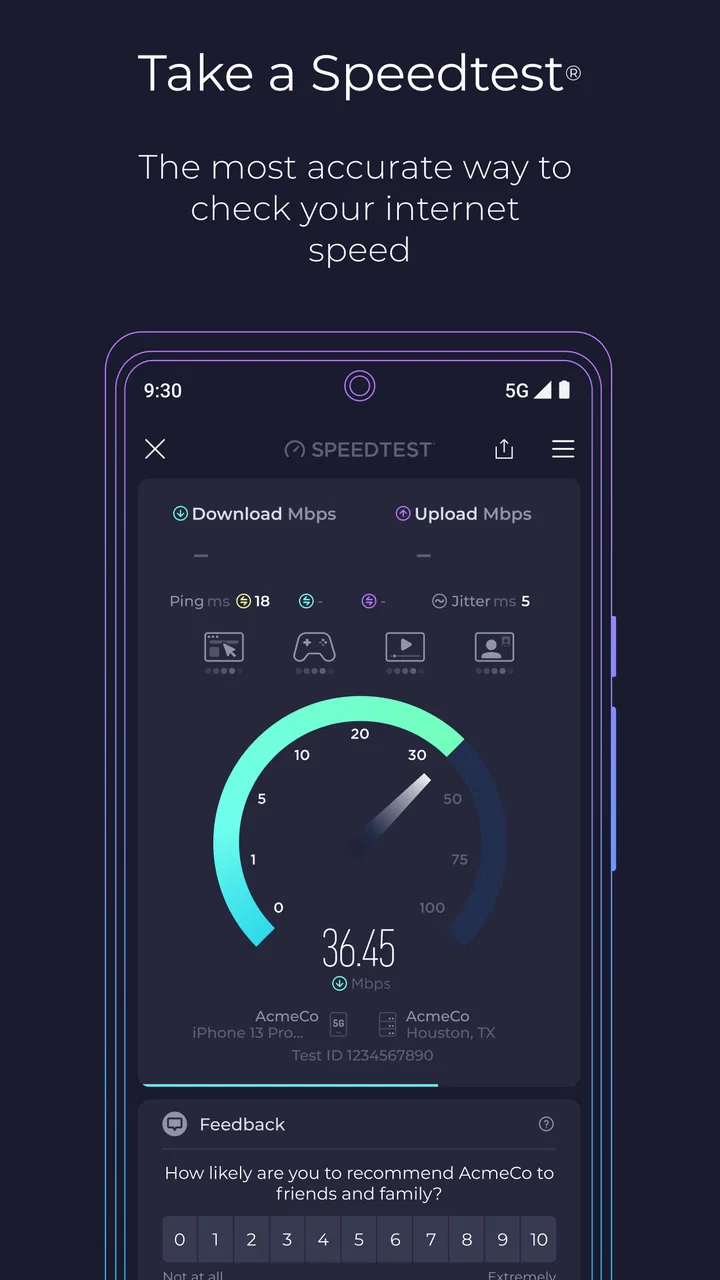
My first decision criterion is clarity. A useful test should make it easy to begin, show the result in language I can understand, and help me compare situations without turning a simple check into a technical project. Speedtest does that well. I can open it when a video buffers, when a work call becomes unreliable, or when I move from home Wi-Fi to cellular data and want to see whether the change is meaningful.
You May Also Like

 Pandora - Music & Podcasts
Pandora’s Music Is Easy to Start, but Harder to Recover
Pandora’s strength is its low-effort path from a seed to a station. Its weak spot is how much confidence it asks you to place in connection, setup, and quiet recovery.

 8 Ball Pool
 Is Built on Rivalries, Rematches, and Routine
A close look at the rivalries, rematches, shared routines, and unanswered safety questions that turn a quick pool match into a persistent mobile community.

 Samsung Music
’s Quiet Strength Is Playing What You Already Own
Its reach comes less from spectacle than from dependable access to a personal library. That simplicity is both the app’s strongest retention engine and its ceiling.

 AccuWeather: Weather Radar
AccuWeather Review: A Quick, Clear Forecast for Everyday Decisions
For everyday plans, the best forecast is the one you can understand quickly. AccuWeather makes rain timing, radar, and local conditions easy to act on, with a few trade-offs.

 Hill Climb Racing
Why Hill Climb Racing Still Turns Crashes Into One More Run
A tiny car, a bumpy hill and one more upgrade: Hill Climb Racing keeps resurfacing because its simple chaos makes every near-miss feel personal.

 AliExpress - Shopping App
AliExpress Makes Global Shopping Feel Personal, but Shoppers Bear the Risk
AliExpress turns a global marketplace into a pocket-sized discovery engine. Its reach is useful, its shopping loop compelling, and its trade-offs easy to miss.
More From Our News Desk
View All News


The second criterion is context. A single result can be misleading because performance changes with the network I am using, the location where I test, the time of day, and the server or route involved. I therefore value an app more when it helps me build a pattern. The most useful habit is to test from the same room, using the same connection type, at different times. That makes the results more useful than a one-off number taken in an unusual situation.
The third criterion is whether the app helps me investigate instead of merely displaying a score. Speed is only one part of the experience. A connection can show a strong download result and still feel poor during a call or online game if responsiveness is inconsistent. I pay attention to the complete result and to the circumstances around it, not just the largest number on the screen.
There is also a privacy and convenience decision. Any connection-testing tool needs to operate with network-related information, so I prefer using it deliberately rather than tapping the test button repeatedly out of curiosity. I also avoid treating a result as proof that my provider has failed. It is evidence that helps me ask a better question, not a replacement for checking the router, device, local network, or service status.
How I use it when something feels wrong
My normal workflow starts with a test on the connection that is actually causing trouble. If a laptop is struggling on home Wi-Fi, testing cellular data on my phone does not explain the laptop problem. I first test near the router, then from the location where the issue occurs. If the result changes sharply between those places, the weakness may be related to coverage inside the home rather than the internet plan itself.
Next, I repeat the check after disconnecting other obvious sources of heavy traffic. This is an important distinction: a slow result while several devices are downloading does not necessarily mean the line is defective. I also avoid drawing conclusions from a single run. Two or three tests taken under similar conditions give me a more honest picture, while tests taken on entirely different networks answer a different question.
A realistic example is a video meeting that becomes unstable every evening. I would test the home Wi-Fi during the meeting problem, then test again close to the router, and finally compare with cellular data if that is practical. If cellular works normally while Wi-Fi remains poor, I know where to focus. If both are weak in the same place and at the same time, the wider service or local congestion becomes more plausible. The app cannot repair the connection, but it can prevent me from blaming the wrong part of the setup.
Where Speedtest by Ookla wins
The biggest strength is the low effort required to get a useful starting point. The interface is built around the central test, so I do not need to understand networking before using it. That makes it suitable for someone helping a family member troubleshoot a connection remotely. I can explain what to tap, ask where the test was performed, and use the result as a shared reference instead of relying on vague descriptions such as “the internet is terrible.”
It is also strong as a comparison tool between connection types. I can check home Wi-Fi, another wireless network, and cellular data separately, then note which one behaves best in the same location. This is more valuable than asking which provider is “fastest” in general, because the answer can change from one building, room, or device to another.
Another practical advantage is that the app is not limited to a single emergency check. Its purpose includes monitoring outages and measuring internet and cell performance, so I can use it when deciding whether a problem is isolated or part of a broader pattern. I find that especially helpful after changing router placement, moving to a new home, or comparing a weak indoor cellular signal with performance outdoors.
The app is free to install and is rated for Everyone, which lowers the barrier for households that want a straightforward diagnostic tool. The current version is 7.0.3, and it runs on Android 7.0 or later. In everyday terms, that means many older Android phones can still use it, although the experience will naturally depend on the device and its software.
Results are more useful when I record the conditions
One non-obvious lesson I learned is that the location of the phone matters almost as much as the connection itself. Testing beside a window, in a hallway, and in a back room can reveal a coverage problem that is invisible when I test only beside the router. I now make a quick note of the room, whether I am on Wi-Fi or cellular, and whether other people are using the network. Without that context, a result is easy to misread.
I also use the app to separate download expectations from real-world responsiveness. A large download result may be reassuring for streaming or file transfers, but it does not guarantee that an interactive activity will feel smooth. For calls, remote work, and games, I care about whether the connection remains dependable while I use it. A test is a useful clue, but I still judge the connection during the activity that matters to me.
Another useful workflow is testing before and after a change. If I reposition a router, switch from a crowded wireless band, or move to a different area of the house, I can compare results under similar conditions. The important part is changing one thing at a time. If I restart the router, move rooms, close several apps, and test on cellular all at once, I learn very little about which action helped.
What the app does not solve for me
Speedtest is a measuring tool, not a universal network repair kit. It cannot make a weak signal stronger, replace a failing router, or guarantee that a particular website or game server will respond well. If only one service is slow while other activities work normally, the test may show that my general connection is fine even though the specific service has a problem.
There is also a risk of over-testing. Running the app repeatedly can create the illusion of precision when conditions are changing from minute to minute. I would rather perform a small set of purposeful checks than collect a long list of numbers with no consistent location or network. The app makes testing easy, but good diagnosis still depends on disciplined use.
Some users may also dislike the possibility of in-app purchases, which range from $0.99 to $8.99 per item. The basic app is free, but anyone who wants to avoid accidental spending should review the purchase controls on the device and avoid treating optional extras as necessary for a simple connection check.
Where another type of tool may fit better
Speedtest is a good general-purpose choice, but it is not automatically the best option for every question. If I only want to know whether a particular website is currently reachable, a browser check may be faster. If I need to inspect devices connected to my home network, manage a router, or change wireless settings, the router maker’s app is usually more appropriate. Those tools address network management rather than independent performance measurement.
For a person who cares mainly about mobile coverage, a carrier-focused tool or a phone’s built-in network information may answer a narrower question more directly. Speedtest can help compare cellular performance, but it should not be mistaken for a complete map of every place where a signal will work. Local building materials, indoor position, device hardware, and network conditions can all affect the experience.
Power users may prefer command-line diagnostics or specialist network utilities when they need detailed routing, packet behavior, or continuous monitoring. I would not choose Speedtest as a replacement for those tools. Its advantage is accessibility and a clear result, not deep control over every technical layer. For most households, that simplicity is a benefit; for network professionals, it may feel limited.
There is also a case for using no extra app at all. If my connection is stable and I never troubleshoot networks, installing a testing tool may add little value. A person who only needs to check a plan’s advertised speed once could use a browser-based alternative. I choose this app when I expect to compare conditions over time or when I want a familiar test that I can ask someone else to run.
The trade-off between simplicity and diagnostic depth
The central trade-off is easy to understand: Speedtest gives me a quick, approachable measurement, while more specialized alternatives can provide deeper investigation. I would recommend the app to someone who wants evidence before contacting a provider, but not to someone expecting a complete explanation of every delay on a complex network.
It is also worth separating provider performance from Wi-Fi performance. A result taken over Wi-Fi includes the influence of the phone’s distance from the router, local interference, the router’s condition, and the number of active devices. If I want to discuss the service plan with a provider, I would try to test under the cleanest reasonable conditions and repeat the check. Otherwise, I might present a Wi-Fi limitation as a line-speed failure.
The same caution applies to cellular comparisons. Moving a few steps can change the result, especially indoors. I would not switch providers based on one test from one room. I would compare at the places where I actually use the phone, at more than one time, and alongside my real experience with calls, browsing, and media. The app supports that decision, but it does not make it automatically.
What switching to it costs in practice
For most people, the cost of switching is small because the app is free and the basic workflow is easy to understand. The larger cost is behavioral: I need to test consistently if I want meaningful comparisons. That means using the same device when possible, identifying the active connection, and writing down enough context to remember what changed.
There is also a small learning cost in interpreting results responsibly. Someone may see a lower number and immediately conclude that the provider is failing, when the actual cause is distance from the router or heavy household use. I consider that a worthwhile learning step because the app becomes much more useful once I stop treating every result as a final diagnosis.
On Android, the minimum supported operating system is Android 7.0. The app’s Everyone age rating makes it approachable for general household use, but adults should still explain the difference between a test result and a promise about future performance. The app can help a child understand why a connection feels slow, but it should not encourage repeated tests without a reason.
I would also decide in advance whether I need anything beyond the free experience. For a simple “is my connection behaving normally?” check, I would start without spending money. If optional purchases are presented, I would consider whether they solve a problem I actually have rather than assuming that paid features are required for accurate basic testing.
My recommendation for different kinds of users
I recommend Speedtest by Ookla to people who want a familiar, uncomplicated way to measure internet and cellular performance. It is particularly useful for households troubleshooting Wi-Fi, remote workers checking whether a connection is suitable for an important call, and anyone comparing performance between rooms, networks, or locations. It is also a sensible first tool before contacting an internet provider because it gives the conversation something more concrete than frustration.
I would recommend a more specialized alternative to a network administrator, a person managing many devices, or someone who needs detailed continuous diagnostics. I would also tell casual users with no connection problems that they do not need to install it merely because it is popular. Its value appears when I have a question to investigate, not when I want a number without context.
My best advice is to use it as part of a simple process: test the affected connection, repeat under similar conditions, compare the problem location with a better location, and note what else was happening on the network. That approach turns a quick measurement into useful evidence. It also prevents the most common mistake, which is confusing a single result with the complete story.
Overall, I see Speedtest by Ookla as a practical first stop rather than a complete network laboratory. It is free, widely used, easy to explain, and flexible enough for everyday Wi-Fi and cellular checks. Its limitations are real, especially when I need detailed technical diagnosis or when I overinterpret changing results. Used with a little discipline, however, it gives me the information I usually want at the moment a connection starts behaving strangely.
FAQs for Speedtest by Ookla
01What features does Speedtest by Ookla offer?
Speedtest by Ookla provides a comprehensive suite of tools to measure internet speed, including download, upload, and ping tests. It offers real-time graphs to track connection consistency and allows users to troubleshoot or verify network speeds. The app also includes a VPN feature for enhanced privacy and security while browsing.
02Is Speedtest by Ookla free to use?
Yes, Speedtest by Ookla is free to download and use. However, it offers in-app purchases and a premium subscription called 'Speedtest VPN' that provides additional features like an ad-free experience and more advanced testing capabilities. Users can choose to upgrade for enhanced functionalities if needed.
03How accurate are the speed test results?
Speedtest by Ookla is renowned for its accuracy and reliability, often regarded as the industry standard. The app uses a vast network of servers worldwide to ensure users get the most accurate results possible. However, results can vary due to various factors like network congestion, device performance, and server location.
04Can Speedtest by Ookla be used on both Android and iOS devices?
Yes, Speedtest by Ookla is available for both Android and iOS devices. Users can download the app from the Google Play Store or Apple App Store. The app is designed to provide an intuitive experience on both platforms, ensuring seamless performance and easy navigation across different devices.
05Does Speedtest by Ookla collect user data, and how is it used?
Speedtest by Ookla collects data to provide accurate speed test results and improve its services. The data collected includes IP addresses, device information, and test results. The app's privacy policy outlines how this data is used, primarily for improving service quality and performance analytics. Users concerned about privacy can review and manage their data settings within the app.
Pros
- Accurate internet speed readings.
- Easy-to-use interface.
- Quick test results.
- Supports multiple connections.
- Global server availability.
Cons
- Contains ads in free version.
- Limited features without subscription.
- Requires internet connection.
- Occasional test discrepancies.
- May impact data usage.

Speedtest by Ookla
Gallery